
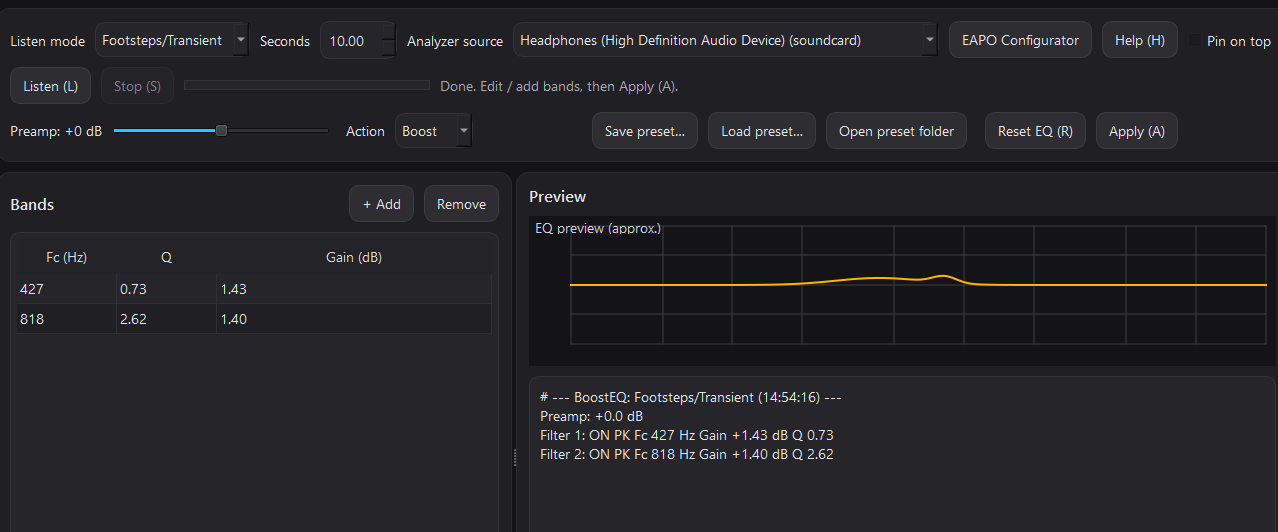
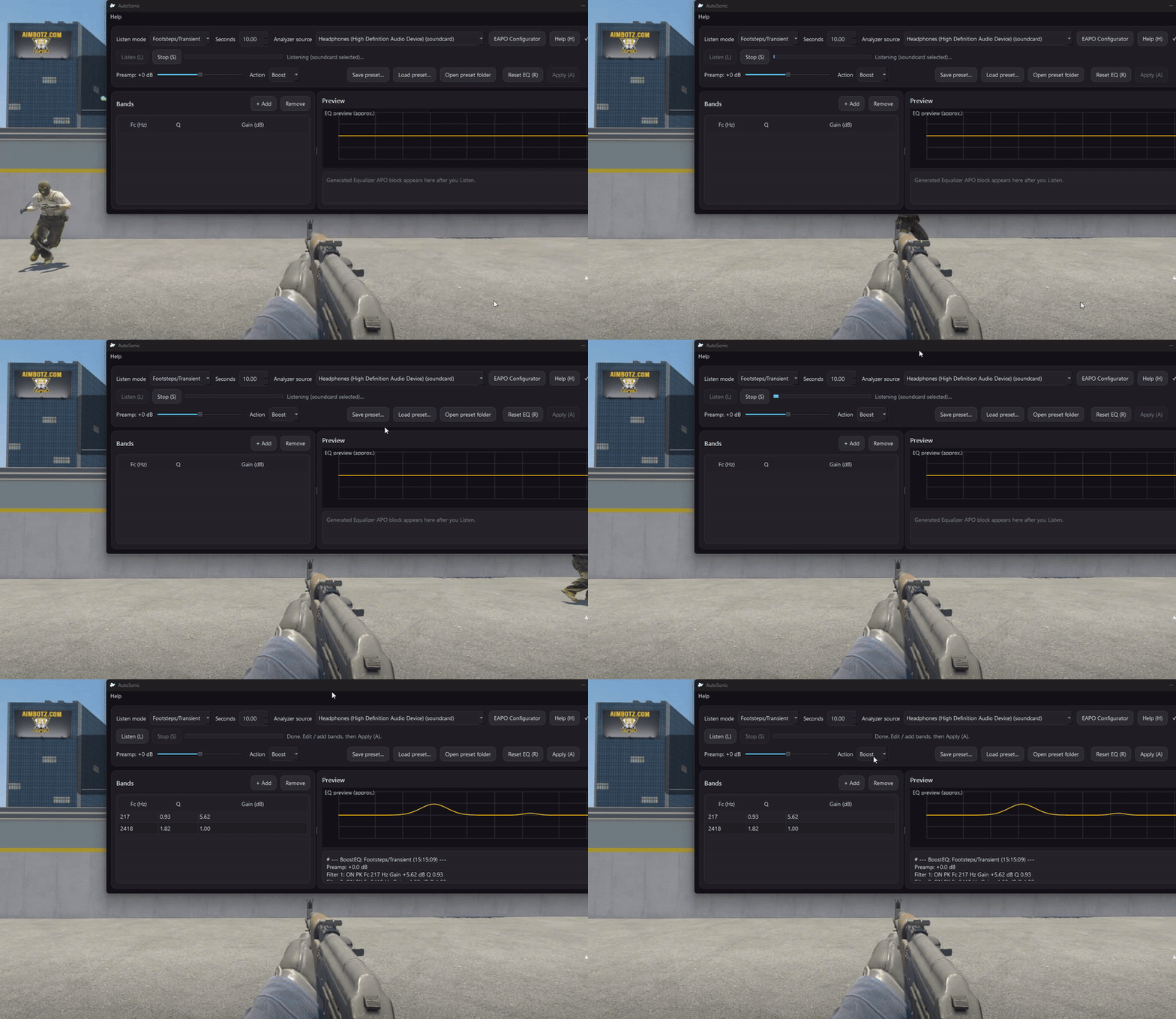
Quick start (≈60 seconds)
- (Recommended) Install Equalizer APO so the EQ applies system‑wide.
- Open the EAPO Configurator, tick your playback device (headphones/speakers), and reboot if Windows asks.
- Run AutoSonic on Windows.
- Choose a simple mode: Footsteps, Ambience, or Balanced.
- Play the sound you want boosted (e.g., run around for footsteps), click Listen for ~5–15 seconds, then click Stop.
- Click Apply. Done — your system audio is now tuned. (Optional: tweak sliders first.)
Good to know: AutoSonic only listens to your system audio and writes EQ settings. It doesn’t add an overlay and doesn’t hook into games.
Controls & hotkeys
- Listen / Stop — capture a short sample of system audio
- Action — Boost / Reduce / Custom
- Preamp — a safety slider to prevent distortion (optional)
- Apply — push the generated block to Equalizer APO
- Hotkeys: L Listen • S Stop • A Apply • R Reset • H Help
Suggested workflow
- Start your game/music in the exact scene you care about (e.g., run around to generate footsteps).
- Choose the matching Listen mode:
- Footsteps/Transient — short repeating sounds (footsteps, reloads)
- Sustained/Ambience — constant sounds (engine hum, music bed)
- Generic — balanced
- Capture 10–20 seconds. Repeat once or twice if the scene is inconsistent.
- If something sounds harsh or muddy, try a small Reduce first, then add a little boost for clarity.
- Small changes usually sound best. If it distorts, lower Preamp.
Presets
- Save preset… stores your current suggestions so you can swap between games/headphones.
- Load preset… restores a saved curve and its settings.
- Presets are portable; you can share them by sending the preset file.
Equalizer APO setup (must-read)
- Equalizer APO applies EQ at the Windows audio level. If AutoSonic seems to “do nothing”, it’s almost always because the device isn’t enabled in the Configurator.
- After enabling your device, Windows may require a reboot for EAPO to attach correctly.
- If you change your default playback device (USB headset / DAC / Bluetooth), re-run the Configurator and enable the new device.
Tips
- For the best results, capture the exact situation you care about (e.g., the same map/scene).
- Short capture (5–15s) is usually enough. If the scene is chaotic, record a little longer.
- If you get “No audio captured”, make sure audio is playing and try a different Analyzer source in AutoSonic.
Advanced (optional) — why results can differ
Different scenes/music have different dominant frequencies, so AutoSonic may suggest slightly different EQ each time. If you want consistency, record 20–30 seconds and repeat once — then pick the best result.
Troubleshooting
- No change after Apply? Confirm Equalizer APO is installed, your playback device is enabled in Configurator, and reboot once after enabling.
- No audio captured? Make sure sound is playing and your Windows default playback device is correct; then try another Analyzer source.
- Weird results? Record longer (20–30 seconds) and use a more consistent scene; reduce Gain and increase Preamp headroom.
Privacy: AutoSonic processes audio locally. Nothing is uploaded.