
Quick start (≈1 minute)
- Run CrossSight.exe.
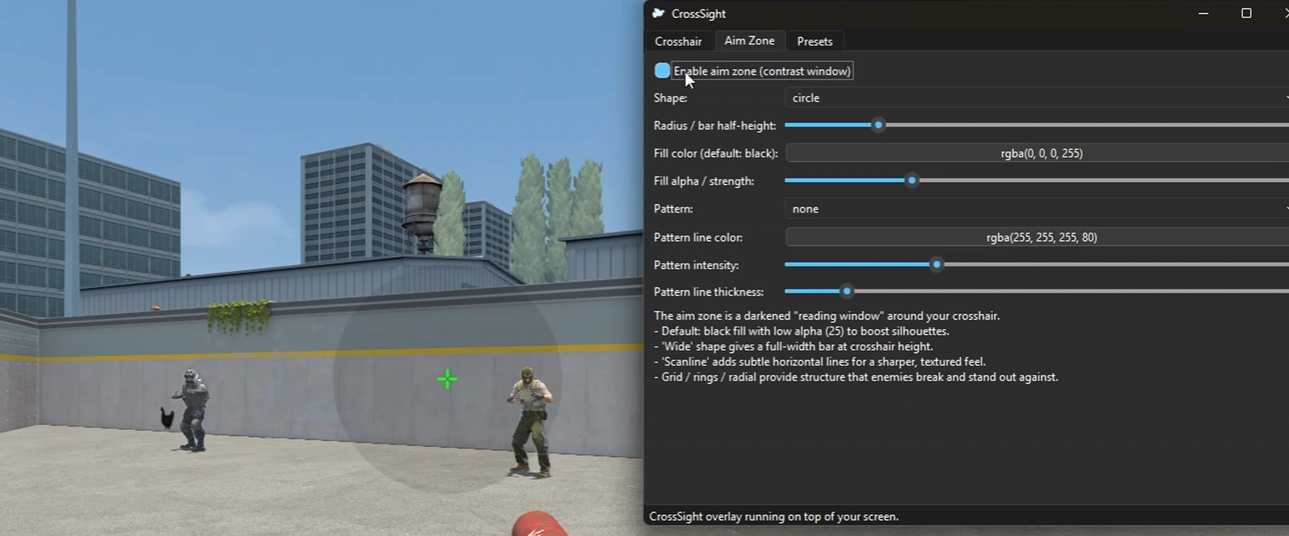
- A default small green crosshair and dark circular aim zone appear at the center of your main screen.
- Alt-tab to the CrossSight window to tweak crosshair size, color, gap, and aim zone strength.
- Leave CrossSight open and start a game or app in borderless windowed or windowed fullscreen mode.
- Clicks and keypresses still go to your game/app — the overlay is click-through.
Crosshair controls
- Enable crosshair – master on/off toggle.
- Color – pick anything; high-contrast colors (cyan, magenta, white) plus a dark outline stand out best.
- Thickness – line width in pixels.
- Line length – how far the arms extend from the center.
- Gap – empty space around the center.
- Center dot & radius – optional dot size in the middle.
- Outline – extra dark border around lines and dot so the crosshair is readable on bright or noisy backgrounds.
Aim zone & patterns
The aim zone is a dimmed “reading window” around your crosshair. It increases contrast so targets stand out without blinding the rest of the screen.
- Enable aim zone – turn the contrast window on/off.
- Shape – circle, box, diamond, or wide (a full-width bar across the screen at crosshair height).
- Radius / half-height – size of the circle/box or the height of the wide bar.
- Fill color – usually black; you can tint it if you prefer.
- Fill alpha – how strong the dimming is (0 = off, 100 = very dark).
- Pattern – optional structure inside the aim zone:
- grid – faint grid lines;
- rings – concentric circles;
- radial – spokes from center;
- scanline – horizontal lines for a subtle CRT/sharpness feel.
- Pattern color / thickness / intensity – how visible those lines are.
Presets
- Give your current setup a name and click Save preset to store it as a JSON file.
- Presets live in your user config folder and can be shared just by sending the
.jsonfile. - Use the Load button to switch between presets for different games or lighting conditions.
- CrossSight automatically remembers the last settings you used and restores them on next launch.
Tips
- Keep the crosshair small and clean; let the aim zone do most of the contrast work.
- Use a bright color + dark outline for clarity on both bright skies and dark interiors.
- Try the wide bar shape with gentle scanlines if you mostly care about horizontal tracking.
- If the overlay disappears behind a game, switch that game to borderless windowed.
Troubleshooting
- Overlay not visible? Some games in exclusive fullscreen can cover any overlay. Use borderless/windowed fullscreen instead.
- Overlay flickers or goes behind other windows? Make sure CrossSight is still running; bringing its window to the front once usually fixes stacking.
- Mouse clicks not working? CrossSight is designed to be click-through; if something feels off, try restarting it and your game.
Not a cheat: CrossSight does not inject into, or read memory from, any game. It just draws an always-on-top overlay that your OS already supports.