
Best Window Audio Settings for Footsteps in Any Game (2026)
People Google stuff like “how to hear footsteps better in Warzone”, “best audio settings for PUBG , “best Windows sound settings for gaming”, or “best EQ settings for footsteps” but the truth is: the core fix is the same across games. Whether you play Call of Duty (COD / Warzone / MW3), Counter-Strike 2 (CS2), Apex Legends, Fortnite, PUBG, Escape from Tarkov, Rainbow Six Siege, Overwatch, The Finals, Arc Raiders, or basically any FPS, you win fights by hearing footsteps earlier and placing direction faster.
This guide is the universal footsteps audio setup: the frequency ranges that footsteps live in, the best Windows settings, and the fastest EQ approach (manual or automatic).
1) Footstep frequency ranges (works in any FPS game)
No matter what you play, footsteps tend to show up in the same “zones.” The fastest way to hear footsteps better is to boost the zones where footsteps actually live (instead of turning your volume to max and destroying your ears).
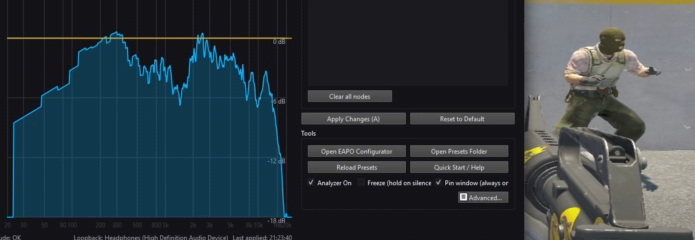
- 150–450 Hz: the body of footsteps (the biggest one)
- 1 kHz–3.5 kHz: texture/presence (gravel, wood, metal, concrete)
- 4–5 kHz: clarity/crispness + small cues like reloads
2) Best in-game audio settings for footsteps (generic checklist)
Games label audio options differently, but most modern FPS titles share the same traps. Use this as your universal best audio settings for gaming checklist:
Sound mix / dynamic range
- Pick a mix that boosts quiet detail (often called “Headphones”, “Boost”, “Night Mode”, “Midnight”, “Low Dynamic Range”).
- Avoid mixes that are “Cinematic” / “Home Theater” (they favor explosions over footsteps).
Surround / 3D audio / HRTF (in-game)
- If the game has a built-in HRTF / 3D Headphones toggle, try it ON first.
- But do not stack multiple surround systems (game HRTF + Windows Sonic + headset “7.1” at the same time).
Music / dialogue / effects
- Turn Music down (it masks footstep ranges constantly).
- Keep Effects high enough to preserve detail.
- If you only care about footsteps: reduce big masking sounds (vehicle rumble, ambient, cinematic bass sliders if present).
3) Best Windows sound settings for footsteps (Windows 10/11)
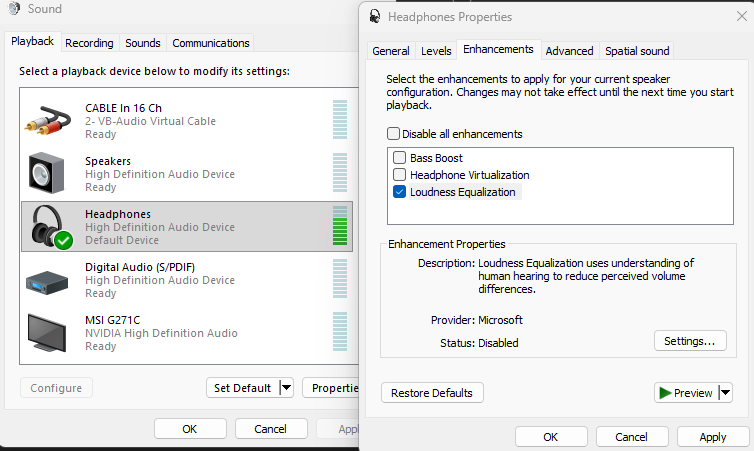
Windows Loudness Equalization (optional “OP” mode)
Loudness Equalization acts like a compressor: quiet sounds get louder and loud sounds get softer. That means a tiny footstep far away can suddenly sound like it’s right next to you. It’s strong enough that some competitive scenes dislike it (and it’s even banned in some contexts), but it’s still just a normal Windows feature.
Spatial sound (Windows Sonic / Dolby Atmos / DTS)
Turn Windows spatial sound OFF. Most competitive games already do their own HRTF / 3D audio processing. Stacking spatial systems often makes direction worse, not better.
Sample rate / bit depth
16-bit 48 kHz or 24-bit 48 kHz is fine. This doesn’t meaningfully fix footsteps. Your real gains come from EQ + (optional) Loudness Equalization.
4) Best EQ settings for footsteps (any headphones, any game)
EQ is how you turn “any headphones” into a legit competitive setup. If your headset is bass-heavy, explosions and rumble mask footsteps. EQ fixes that instantly by boosting the footstep zones.
Starter EQ (safe, works for most)
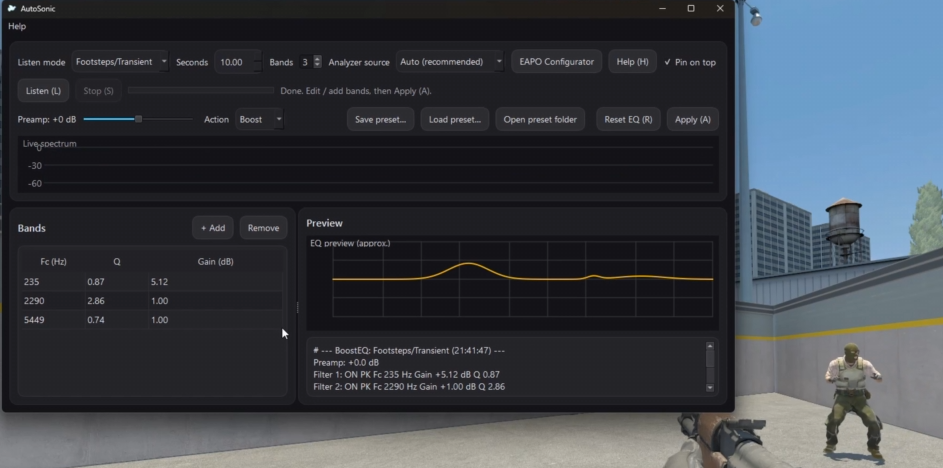
- 150–450 Hz: +3 to +6 dB (main footstep body)
- 2 kHz (within 1k–3.5k): +2 to +4 dB (texture/presence)
- 4–5 kHz: +1 to +3 dB (clarity + reload cues)
Manual EQ (free): Equalizer APO
If you want a free system-wide EQ on Windows, use Equalizer APO. You add parametric/peaking filters and match the boosts above.
Visual EQ (fast): NodeEQ style “analyze in real time” workflow
The best way to stop guessing is to analyze footsteps in real time: play footsteps and watch where peaks land, then boost right where the footstep is hitting.
5) Best headphones for hearing footsteps (and why “gaming headsets” fail)
A lot of “gaming headsets” are tuned for explosions (bass). Bass is fun, but it can hide footsteps. For competitive play, you want clarity in the ranges where footsteps and reloads live (roughly 150–450 Hz and 1k–5k).
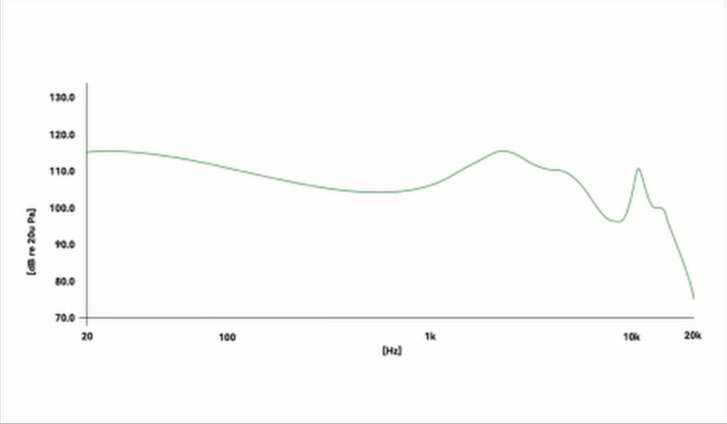
Quick buying checklist (if you don’t want to EQ)
- Look for clear mids/highs (footsteps + reload cues live here).
- Good isolation helps (blocks room noise so quiet footsteps stand out).
- IEMs (in-ear monitors) often outperform bulky headsets for competitive play because of isolation + separation.
Extra edge: visual direction + automatic EQ
Even with perfect settings, chaotic fights can make direction confusing. Tools can help you confirm left/right faster, or auto-tune EQ based on the exact game you’re playing.
SoundSight (audio radar)
A clean overlay that shows left/right direction and intensity so you instantly confirm where footsteps are coming from. Helpful if you have weaker headphones, bad hearing, or you just want faster confirmation in clutch moments.
View SoundSightAutoSonic (auto EQ)
One-click auto EQ: it listens to your game for a few seconds and boosts the frequencies where footsteps actually are. No guessing, no generic presets — tuned to the game audio you feed it.
View AutoSonicFAQ
Does this work for Warzone / COD / CS2 / Apex Legends / Fortnite / PUBG / Tarkov?
Yes. The exact mix differs per game, but footsteps consistently land in similar frequency zones. That’s why a universal EQ + correct Windows settings works across modern FPS games.
Is Windows Loudness Equalization cheating?
It’s a built-in Windows feature (accessibility-style compression). It’s extremely strong for hearing quiet footsteps, but it can make distance cues feel flatter. Use it if your goal is maximum footstep audibility.
Should I turn on Windows Sonic / Dolby Atmos / DTS Headphone:X?
Usually no. Most games already do their own HRTF / 3D audio. Stacking surround systems often hurts directional accuracy. If you want to try surround, try one system at a time (either in-game HRTF OR Windows spatial, not both).
What if boosting 4–5 kHz hurts my ears?
Reduce that band first. Keep the bigger focus on 150–450 Hz and 1k–3.5k. You want clarity without fatigue.